


Upload website files with File Manager
Upload website files to the correct directory, extract the archive, and verify the homepage without exposing sensitive files.
Before you start
- Website files packaged as a ZIP archive
- A backup of the current website
- Access to cPanel
- An index.php or index.html file
Open File Manager
In cPanel, choose File Manager under Files and open public_html.
cPanel → Files → File Manager

Back up current files
Create a backup before replacing files, or move the old files to a temporary folder in the account.
Backup before overwrite
Upload the ZIP archive
Choose Upload, select the website archive, and wait for the progress bar to reach 100%.
Upload → Select File → 100%
Extract inside public_html
Return to File Manager, select the ZIP, choose Extract, and verify the destination is public_html.
Select ZIP → Extract
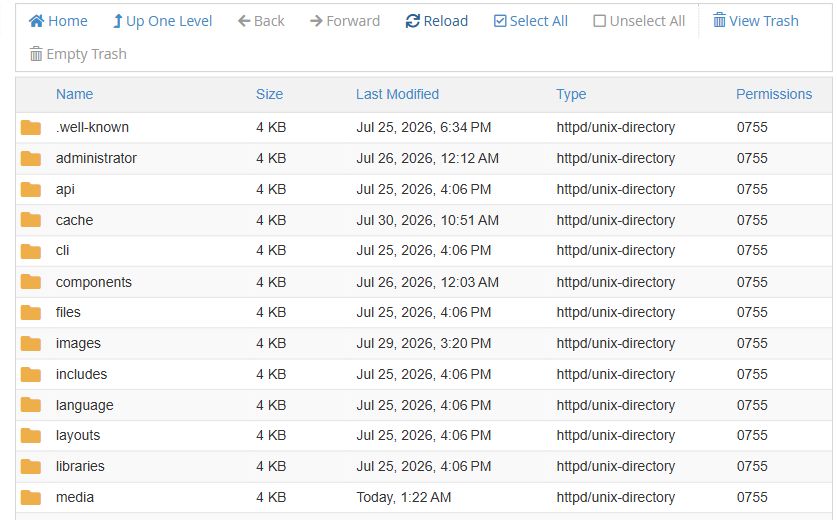
Verify the file structure
index.php or index.html must be directly inside public_html, not inside another nested folder.
public_html/index.php
Common troubleshooting
| Issue | Solution |
|---|---|
| Directory listing appears | Confirm that index.php or index.html exists in public_html. |
| 403 error | Review folder permissions 755, file permissions 644, and .htaccess rules. |
| The old website remains visible | Clear browser, website, and CDN caches after verifying the uploaded files. |
Need help?
Send the error screenshot and service name to ROT4 support and we will help you complete the setup safely.
