


Before you start
- A primary domain already in cPanel
- Access to the cPanel account
- A clear subdomain name
- A backup before removal
Open the Domains tool
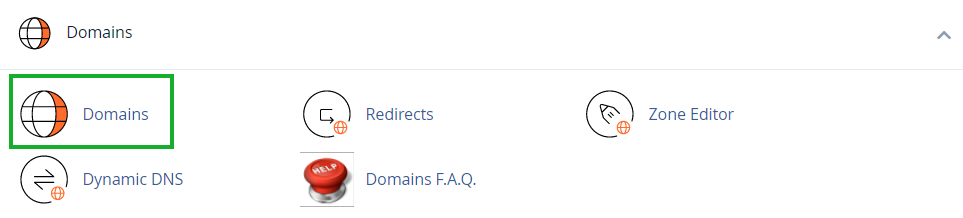
From the cPanel home page, find the Domains group and open Domains.
Start creating a domain
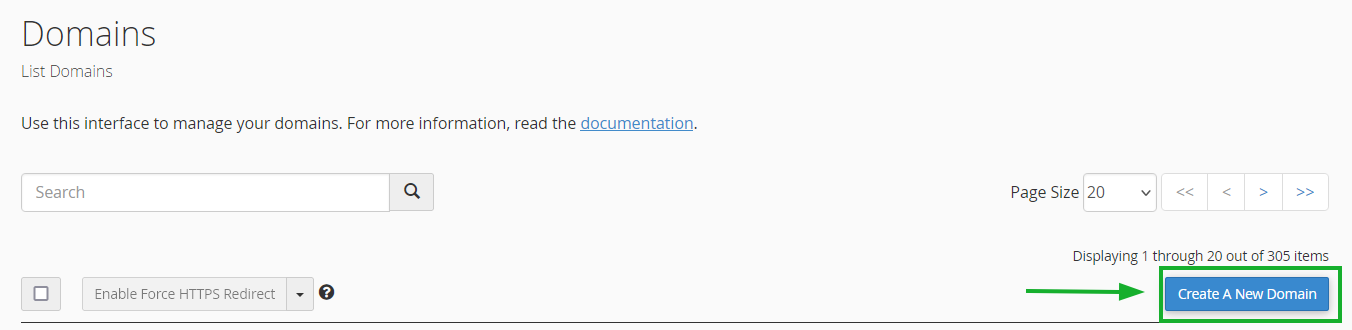
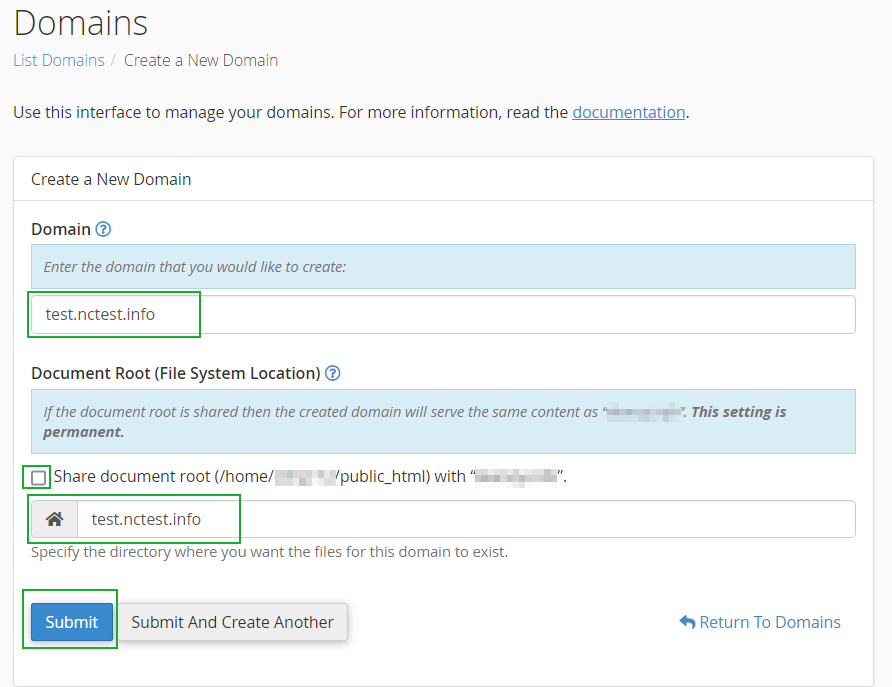
On List Domains, choose Create A New Domain. Modern cPanel uses this button for subdomains too.
Enter the full subdomain
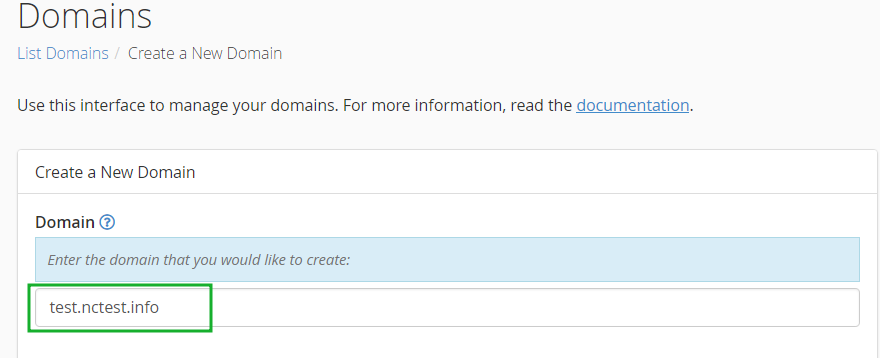
Enter an FQDN such as blog.example.com or staging.example.com, not only the word blog.
Use a separate document root
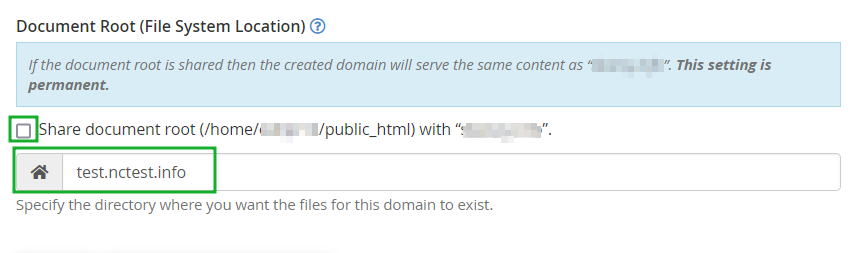
Clear Share document root so the subdomain does not serve the main website, then keep a dedicated folder under public_html.
Review and submit
Confirm the Domain and Document Root, choose Submit, and wait for the success message.
Upload the subdomain files
Open File Manager and browse to the Document Root. Add an index.php or index.html file, then test the subdomain URL.
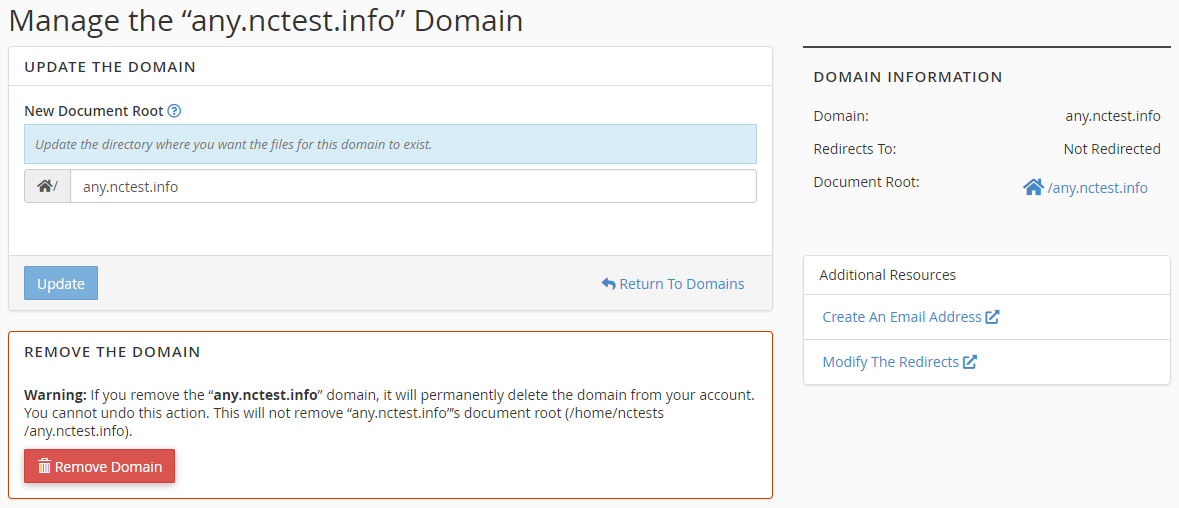
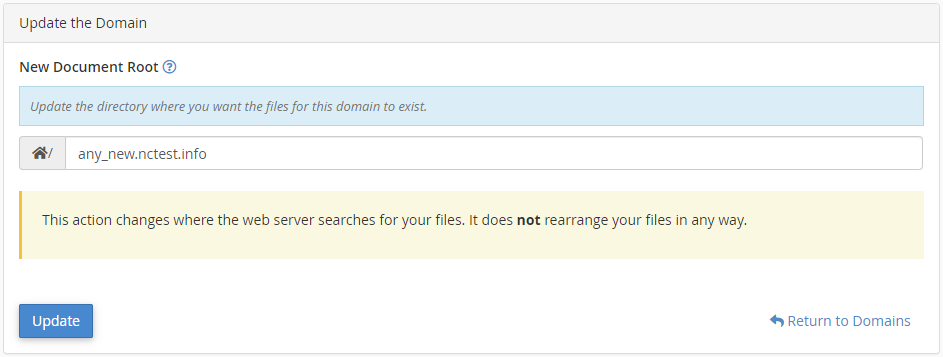
Change the document root
In Domains, choose Manage next to the subdomain, enter a New Document Root, and choose Update. cPanel does not move files for you.
Remove it safely
Create a backup, then use Remove Domain under Manage. Removing the domain may leave its document-root files behind for manual review.

Important
DNS and AutoSSL may need time after creation. Do not change DNS records at random; confirm the primary domain uses the hosting nameservers.
DNS and AutoSSL may need time after creation. Do not change DNS records at random; confirm the primary domain uses the hosting nameservers.
After creation
| Check | Expected result |
|---|---|
| DNS | The subdomain resolves to the correct server |
| SSL | A valid certificate without warnings |
| Document Root | Serves the dedicated folder files |
Your subdomain is ready
Upload the files, test HTTPS, and record the Document Root in your site documentation.
Technical source: Official cPanel documentation
