


Create a MySQL database and connect a user
Create a database and a dedicated user, assign the correct privileges, and save the credentials needed by the website.
Before you start
- Access to cPanel
- A short database name
- A unique strong password
- The website application that will use the database
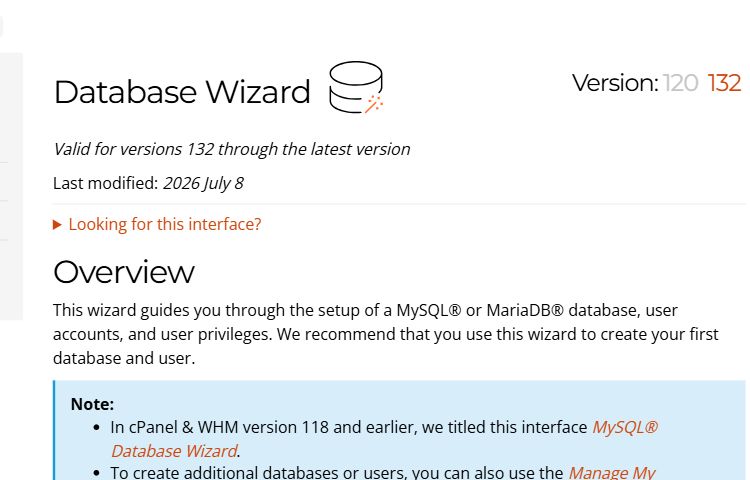
Open Database Wizard
In cPanel, open Databases and choose Database Wizard or MySQL Database Wizard, depending on the interface version.
cPanel → Databases → Database Wizard
Create the database
Enter a short name without spaces and choose Next Step. cPanel adds the account prefix when database prefixing is enabled.
New Database → Next Step
Create the database user
Enter a username, generate a strong password, save it securely, and choose Create User.
Username + Strong Password
Grant privileges
Choose ALL PRIVILEGES for the dedicated website user and continue. Avoid sharing one user between unrelated sites.
ALL PRIVILEGES → Next Step
Record connection details
Save the full database name, full username, password, and localhost hostname for WordPress or Joomla configuration.
DB Name • User • Password • localhost
Common troubleshooting
| Issue | Solution |
|---|---|
| Access denied for user | Check the full prefixed username and password. |
| Error establishing a database connection | Check database name, user, localhost, and privileges. |
| The user is not connected to the database | Use Add User to Database and grant the required privileges. |
Need help?
Send the error screenshot and service name to ROT4 support and we will help you complete the setup safely.
