


Before you start
- ✓ The email linked to your ROT4 account
- ✓ The affected domain or service name
- ✓ The complete error message
- ✓ A screenshot with sensitive details hidden
Open the ticket form and choose the right department
Sign in to the Client Area, open Support Tickets, and choose Open Ticket. Select the department closest to the issue, then enter the account email and a short, specific subject.
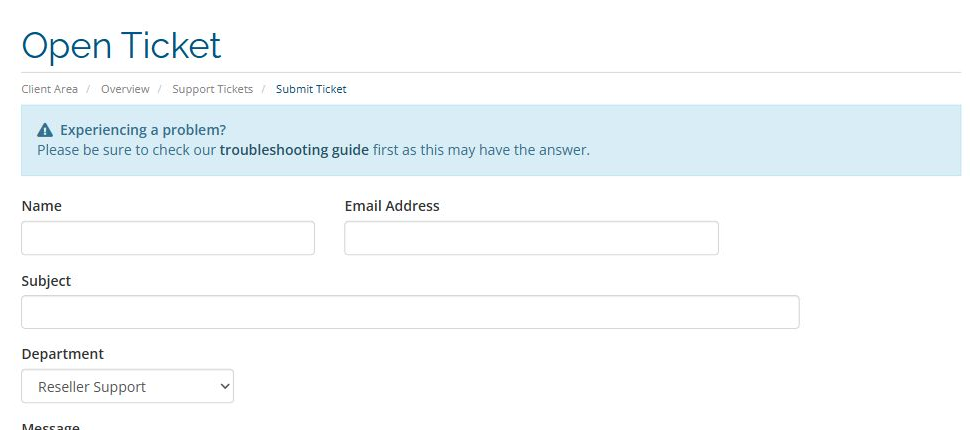
Write a specific subject
Use a subject such as “Cannot send from
Describe the issue in order
In Message, list the affected service, when the issue started, the last change before it, steps that reproduce it, and the exact error. Include the device, browser, or mail app when relevant.
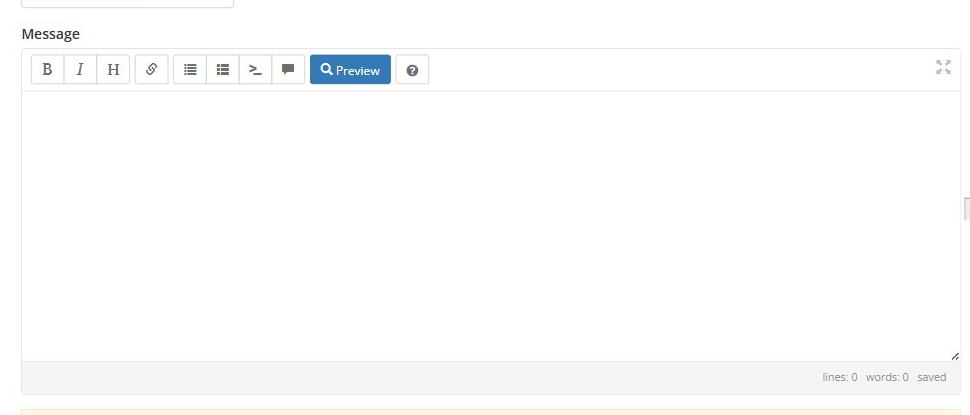
Use a compact information template
Structure the message as service, domain, start time, actions taken, current result, expected result, and full error text. This reduces follow-up questions and helps the engineer reproduce the issue.
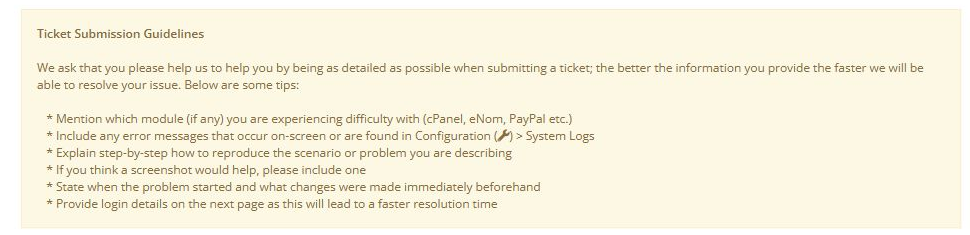
Service: Business email
Domain: example.com
Started: Today at 10:30 AM
Current result: Outgoing mail stays in Outbox
Error: Connection timed out
Last change: Password changed yesterday
Already tested: Webmail works; Outlook cannot send
Attach useful and safe evidence
Attach a clear screenshot that includes the error and relevant interface. Hide passwords, API keys, payment data, and personal information. Review log files before attaching them.
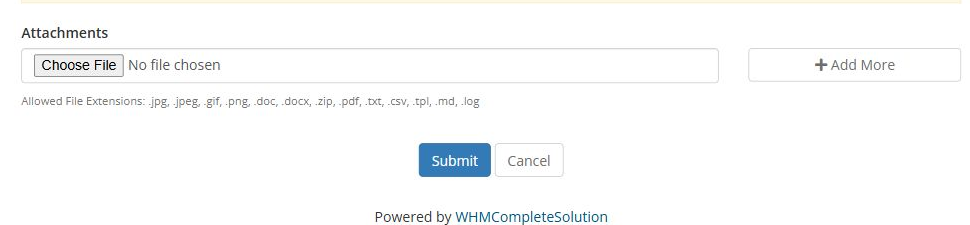
Submit and follow the same ticket
Choose Submit once and keep the ticket number. Reply inside the same ticket when the engineer responds instead of opening a duplicate, and include the outcome of requested tests.

Important security note
Do not send a password, verification code, API key, or payment information in the message or screenshot. If temporary access is required, use the secure method specified by ROT4 and rotate the credentials after troubleshooting.
Do not send a password, verification code, API key, or payment information in the message or screenshot. If temporary access is required, use the secure method specified by ROT4 and rotate the credentials after troubleshooting.
Your ticket is ready for diagnosis
A specific subject + reproduction steps + exact error + safe evidence usually means faster, more accurate support.
References: WHMCS Support Tickets · WHMCS public ticket form
