


Create a business email address
Create a professional mailbox on your domain, set a secure password and quota, then verify sending and receiving.
Before you start
- A domain connected to the hosting account
- Access to cPanel
- A mailbox name such as info or sales
- A unique strong password
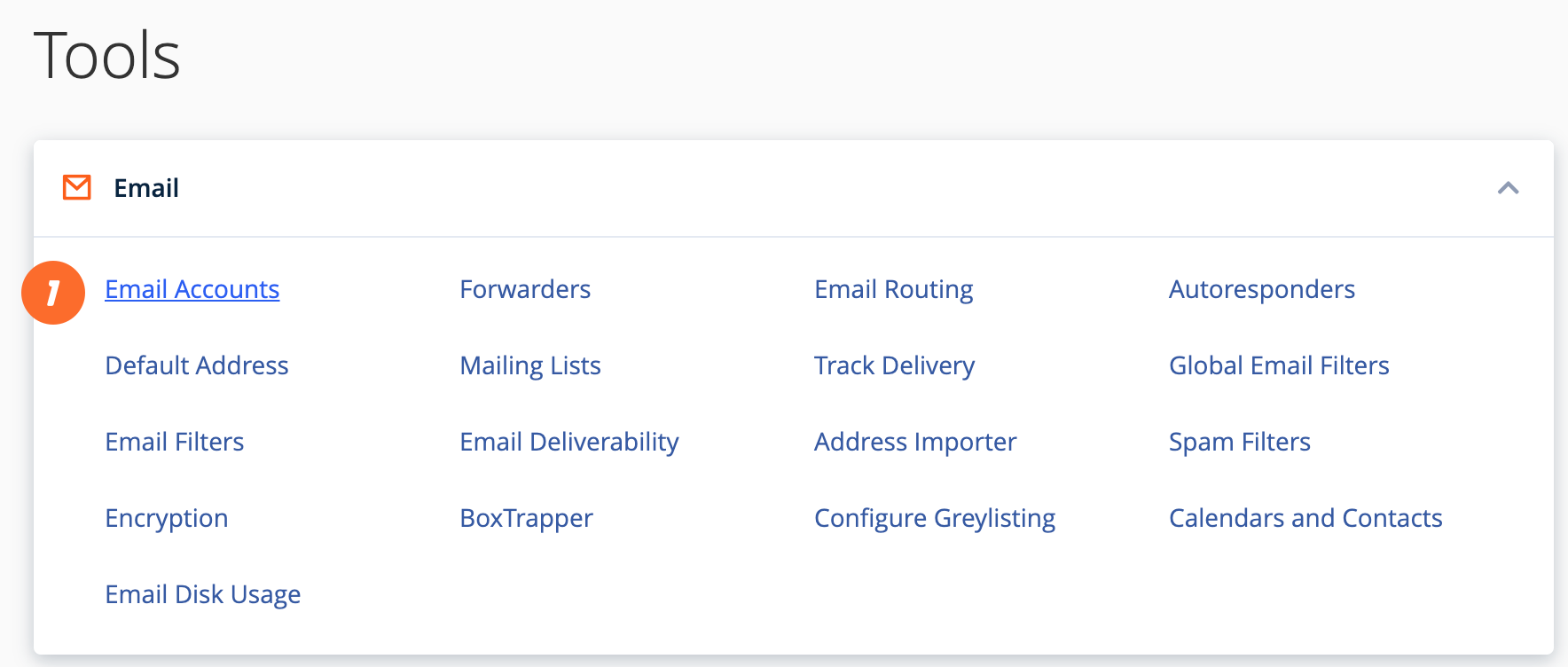
Open Email Accounts
In cPanel, open Email Accounts under the Email group.
cPanel → Email → Email Accounts
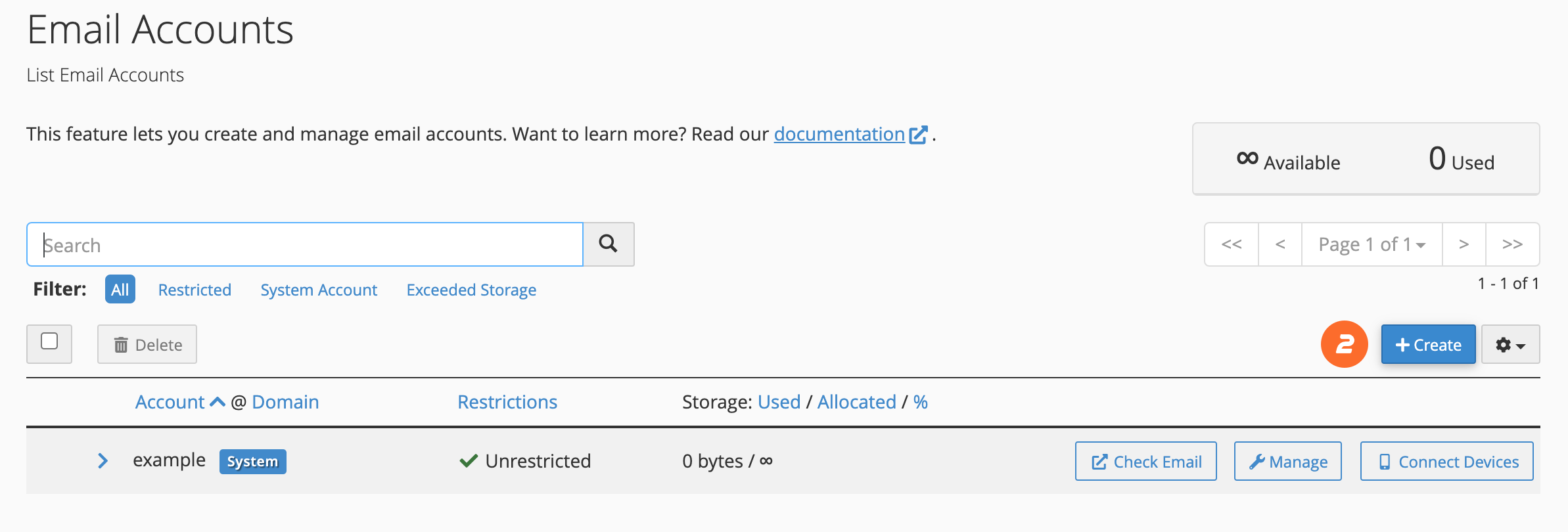
Start creating the mailbox
Choose Create and select the domain when the account hosts more than one domain.
Email Accounts → Create
Choose the email name
Enter the part before @, such as info or support, without spaces.
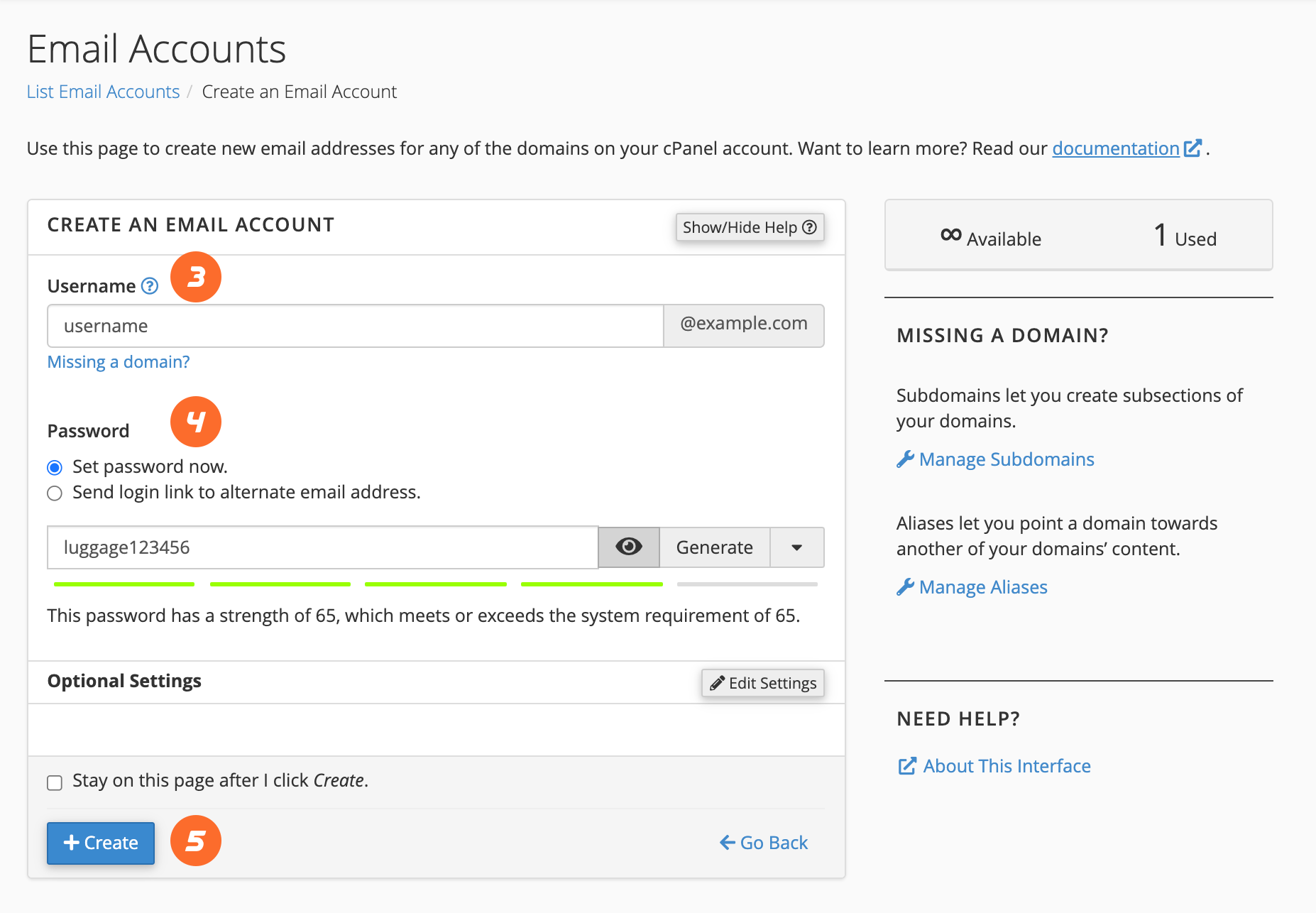
Set password and storage
Use a strong password, assign an appropriate Storage Space, and choose Create.
Strong password + Storage Space
Test from Webmail
Choose Check Email, open Roundcube, send a message externally, and receive a reply.
Check Email → Roundcube
Common troubleshooting
| Issue | Solution |
|---|---|
| The domain is not available | Confirm the domain is added to cPanel and points to the server. |
| Test messages do not arrive | Review MX, SPF, and DKIM under Email Deliverability. |
| The mailbox fills quickly | Remove large messages, increase quota, and review POP/IMAP settings. |
Need help?
Send the error screenshot and service name to ROT4 support and we will help you complete the setup safely.
